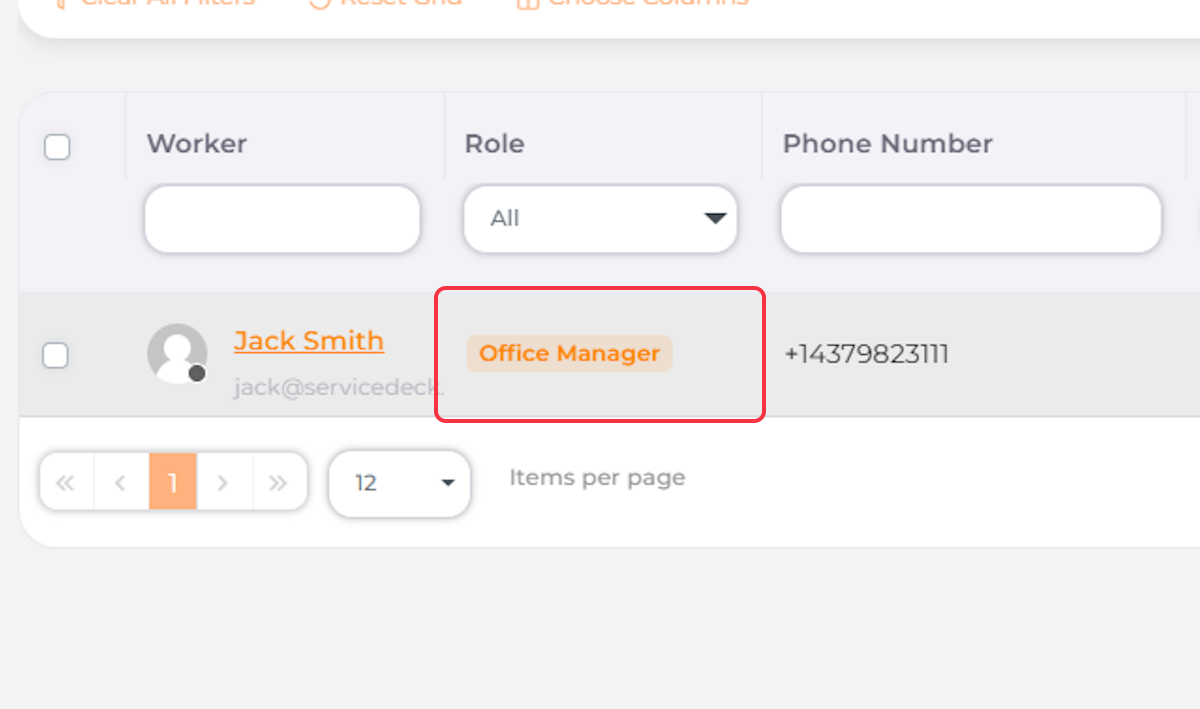

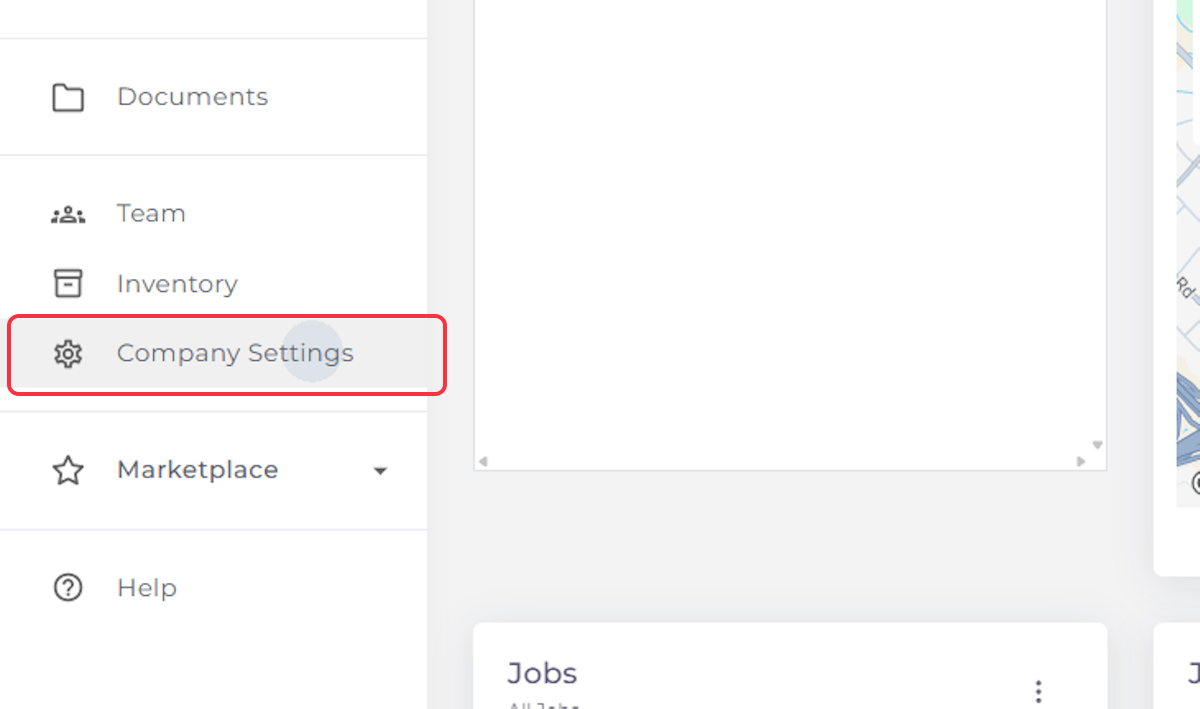
1. Click on Company Settings
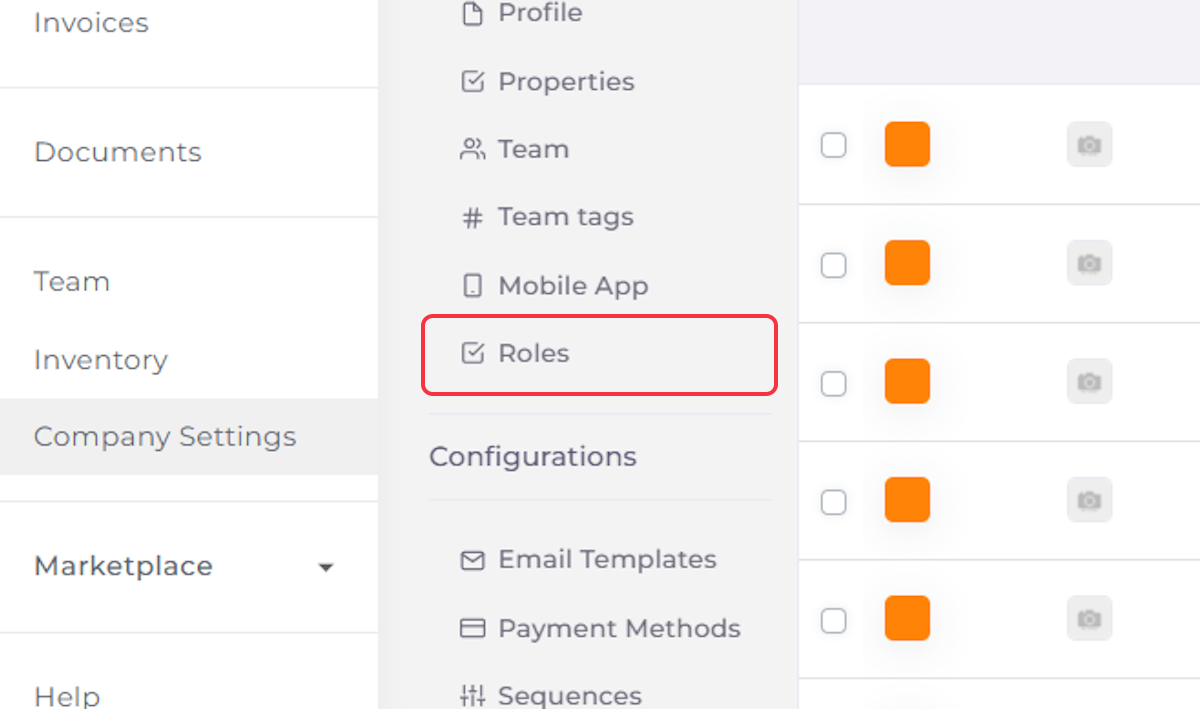
2. Click on Roles
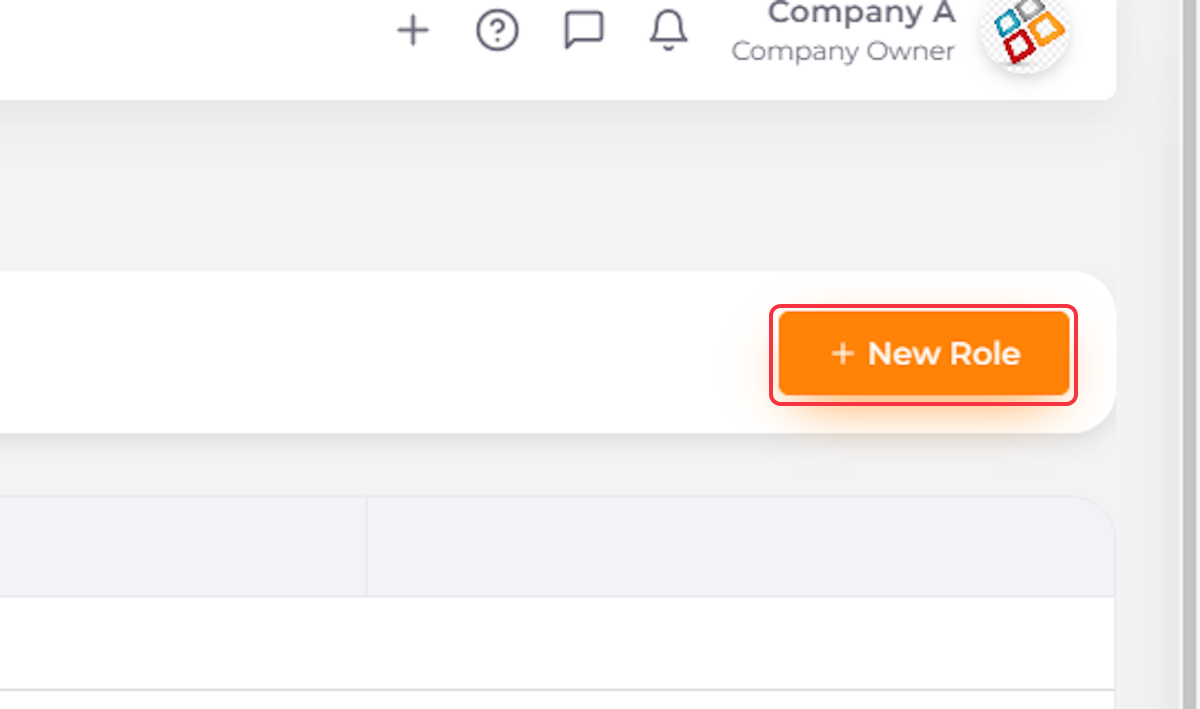
3. Click on New Role
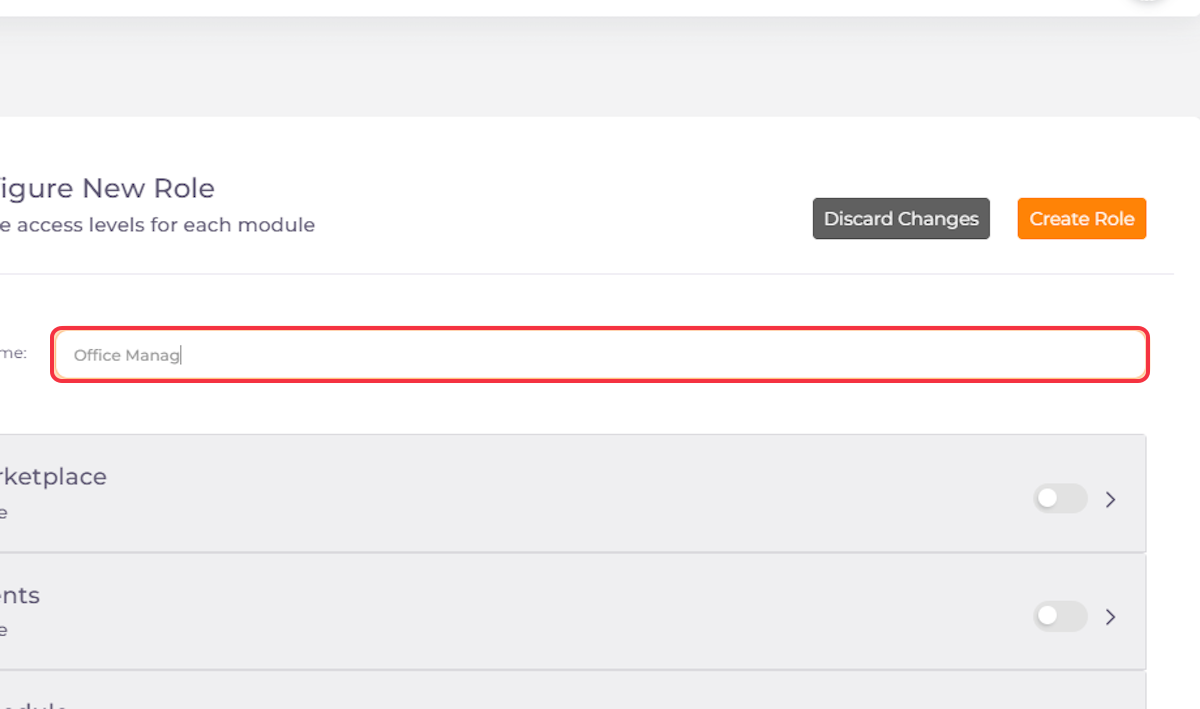
4. Type the Name of the New Role
5. Check the Toggles for the Permissions You Want to Add to All Users with this Role
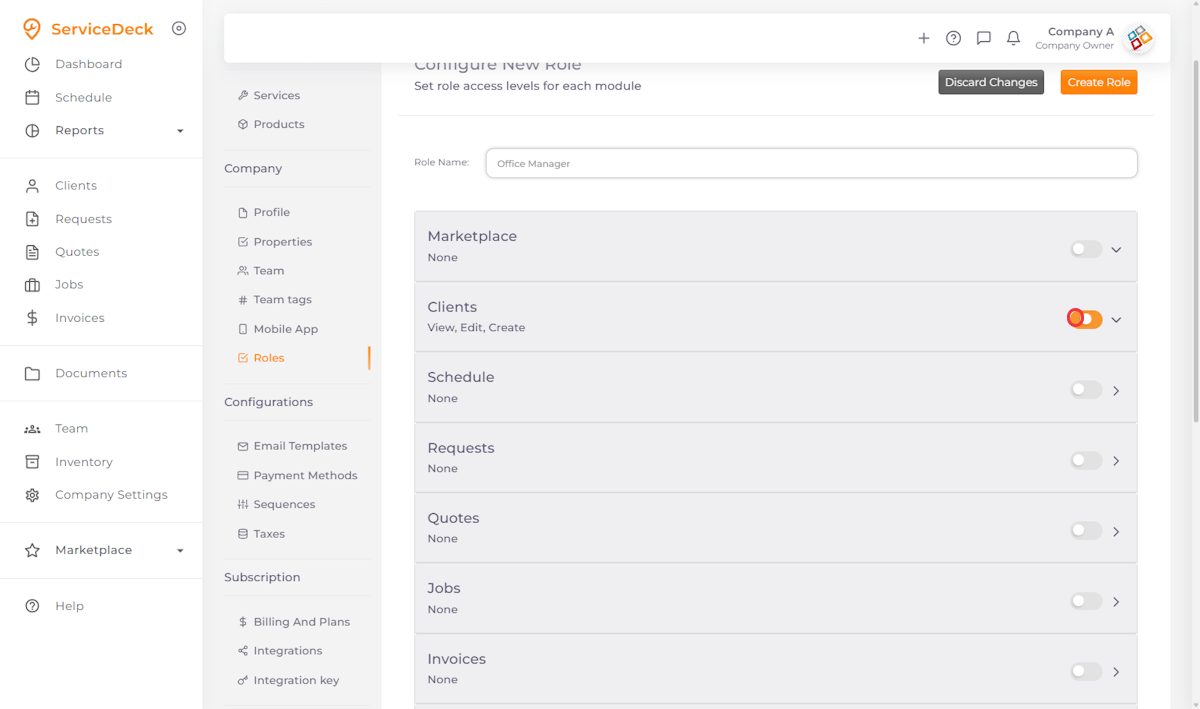
6. Check the Toggles for the Permissions You Want to Add to All Users with this Role
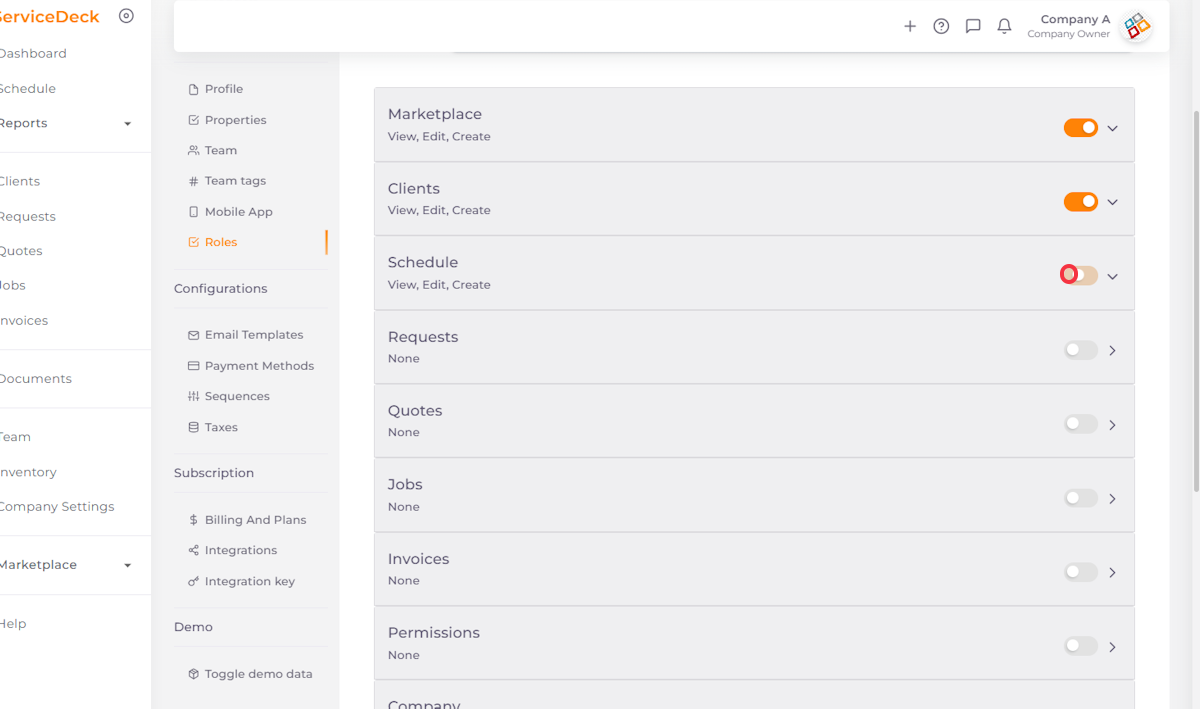
7. Click on the Feature Area. A Dropdown with Additional Permissions will appear
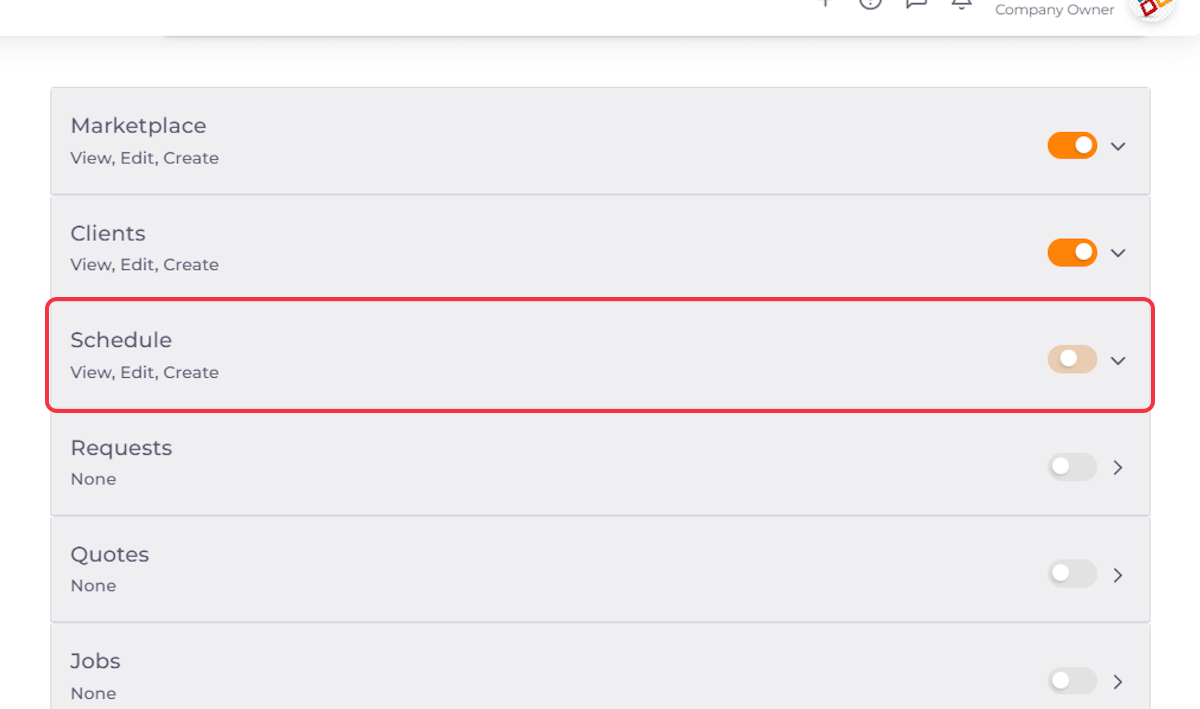
8. Check the Toggle to Allow the User to View, Edit, or Create
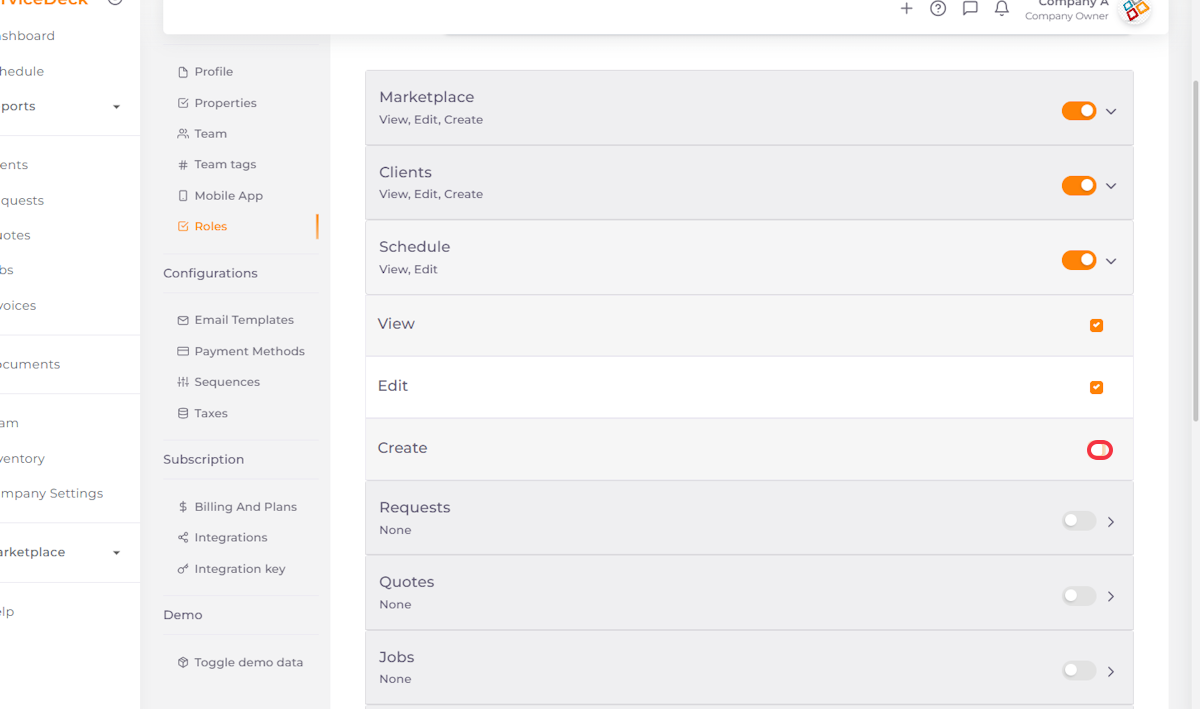
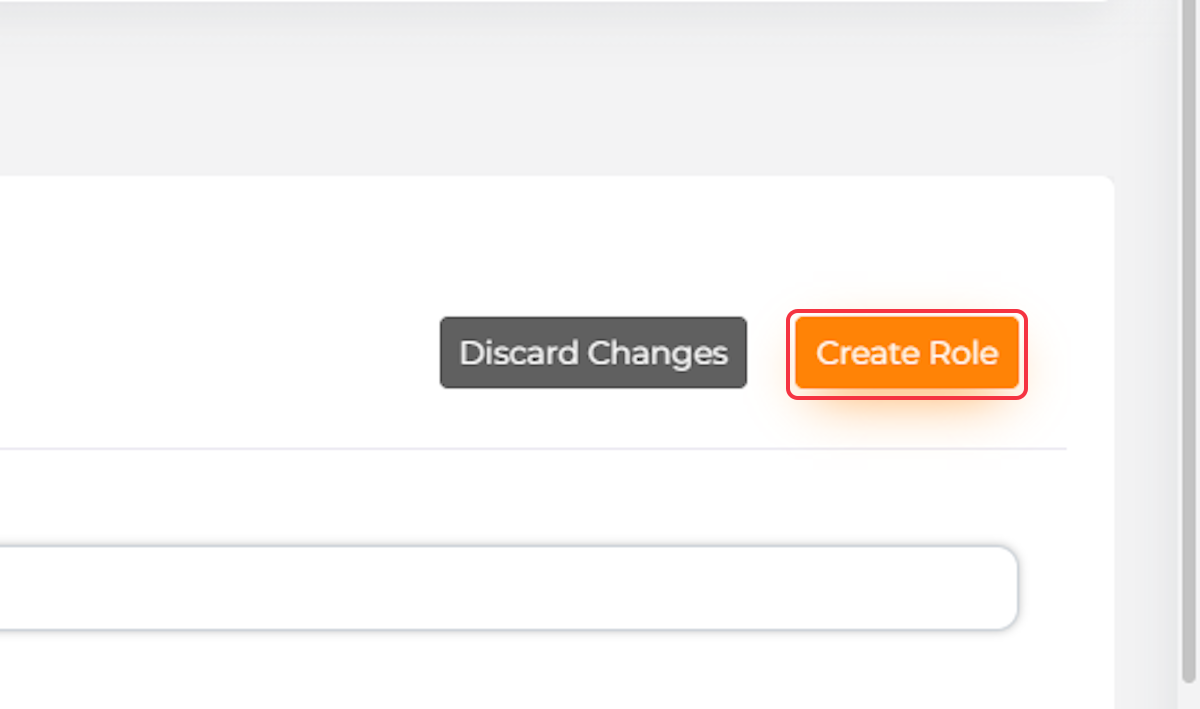
9. Click on Create Role after you have assigned All Desired Permissions to the User
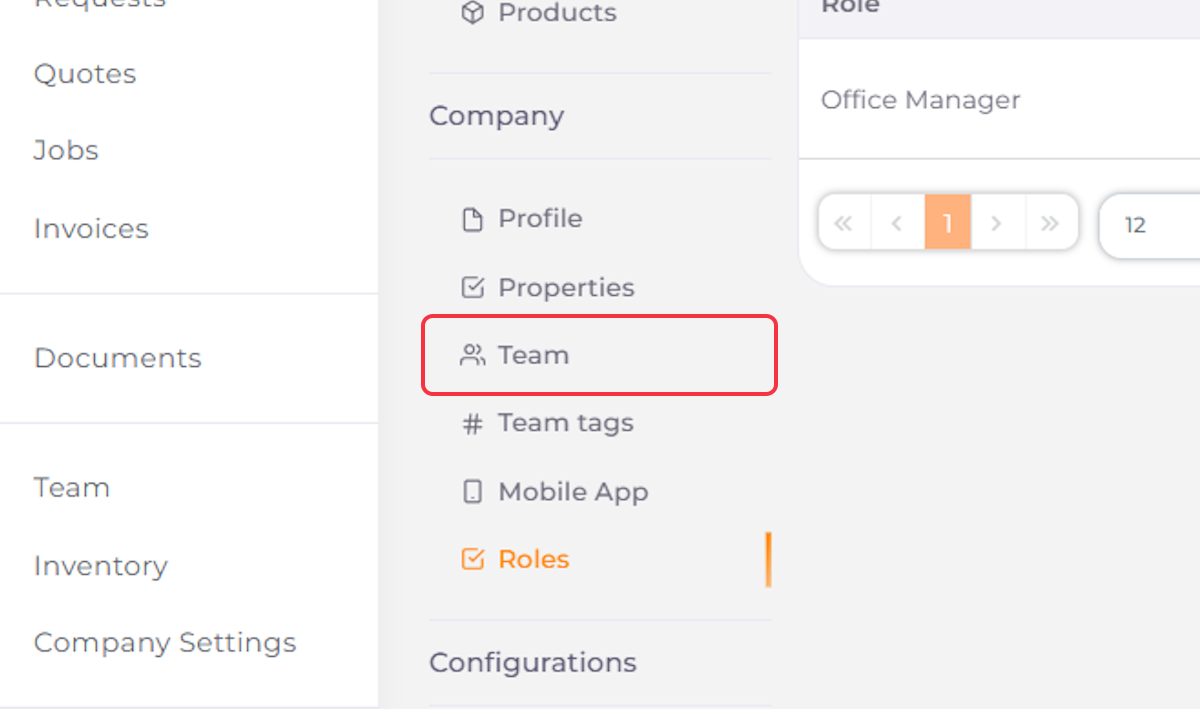
10. To assign a User to the Role you just created, go to Team
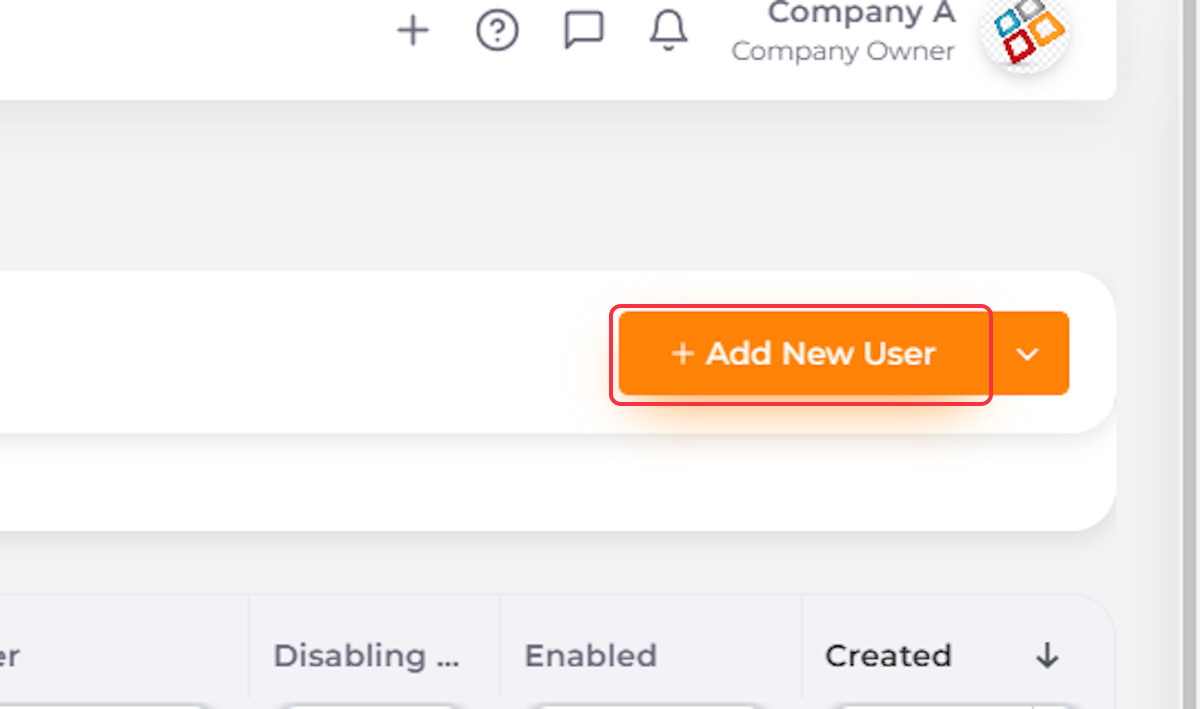
11. Click On Add New User
12. Add User’s Name
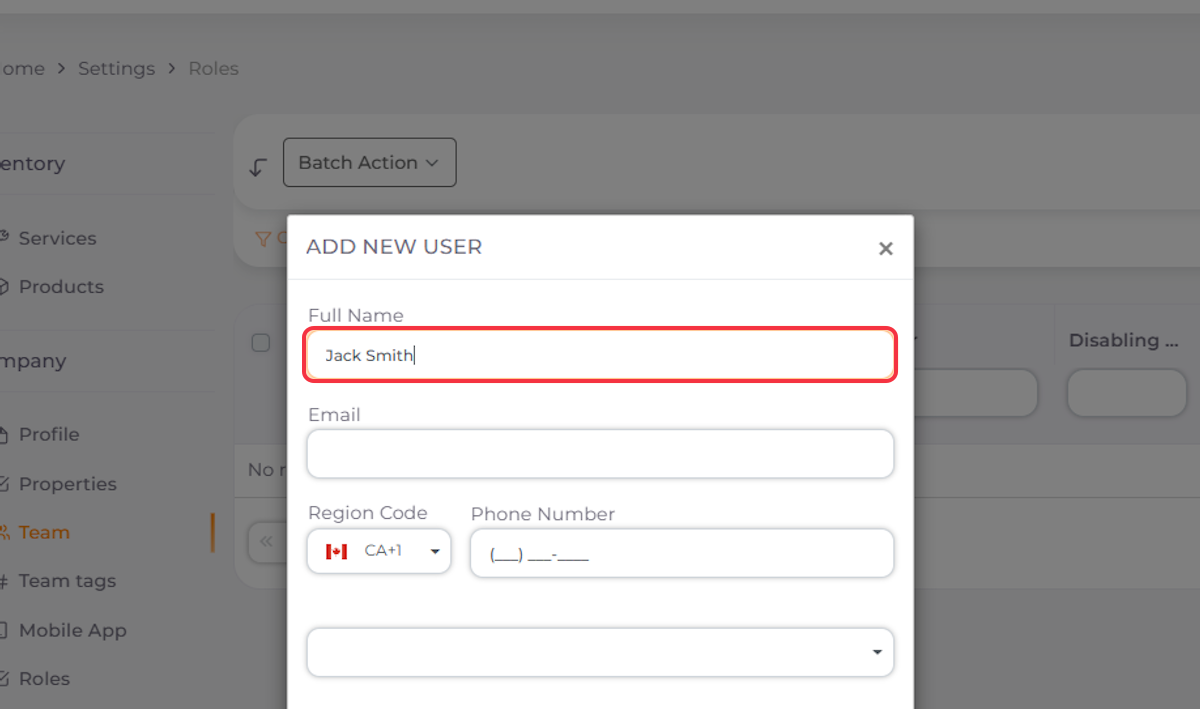
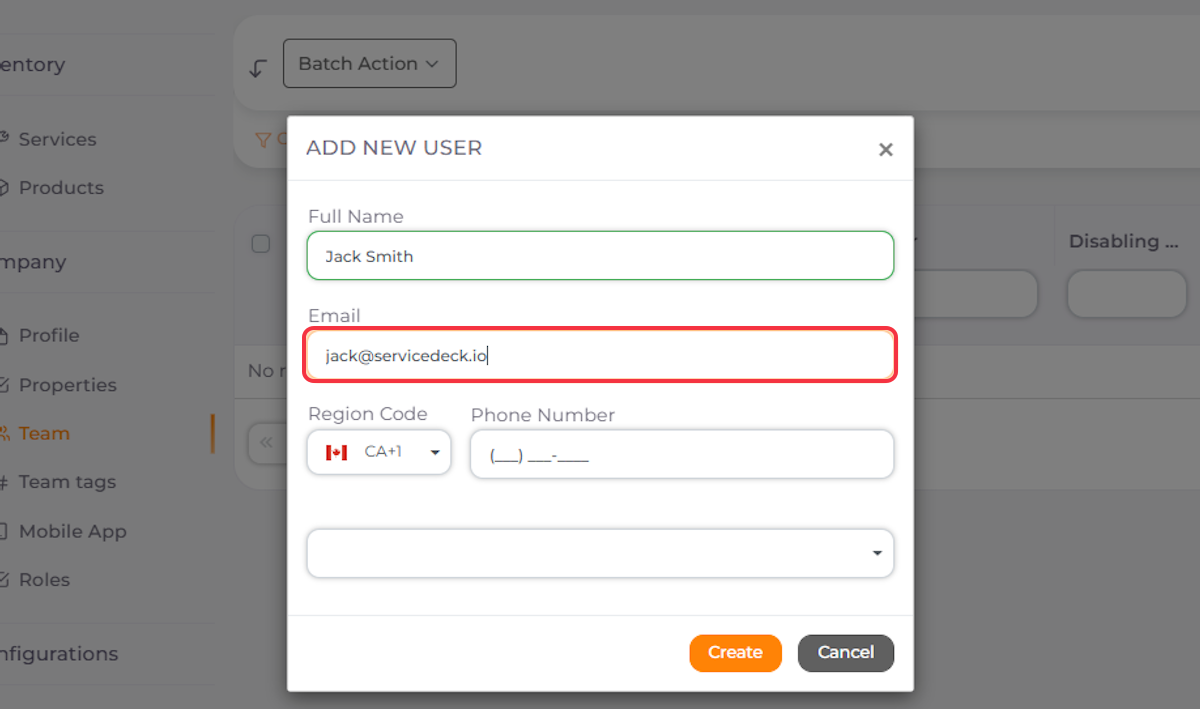
13. Add User’s Email
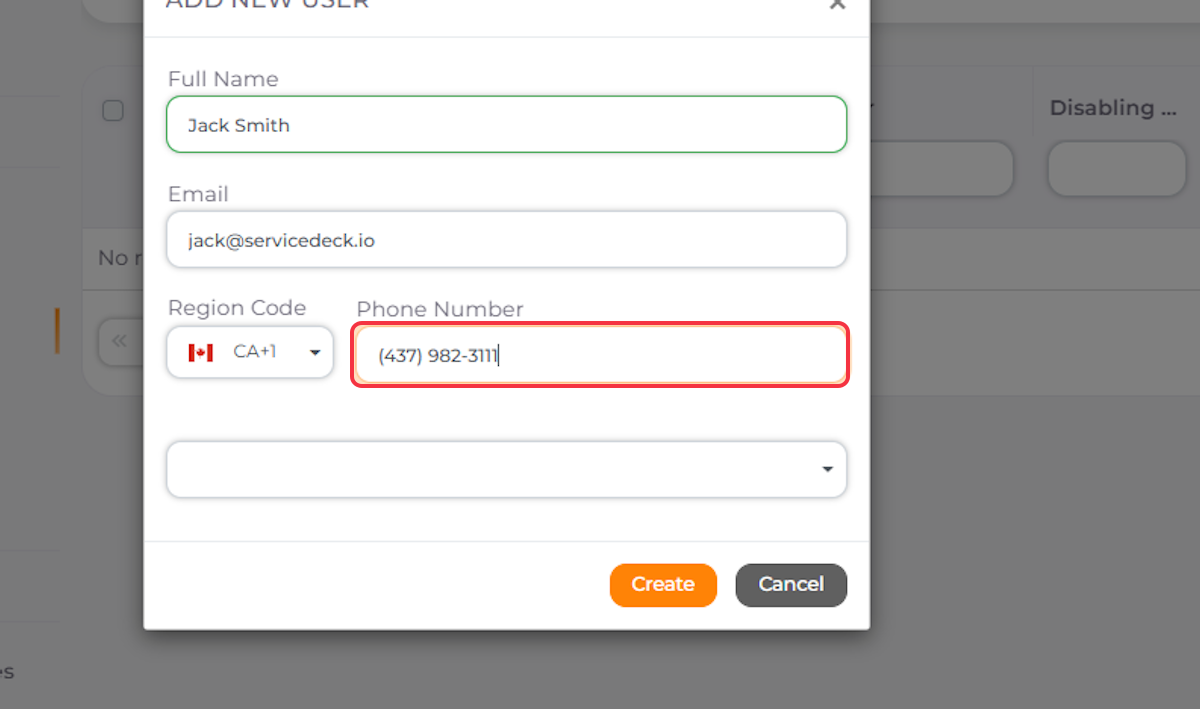
14. Add User’s Phone Number
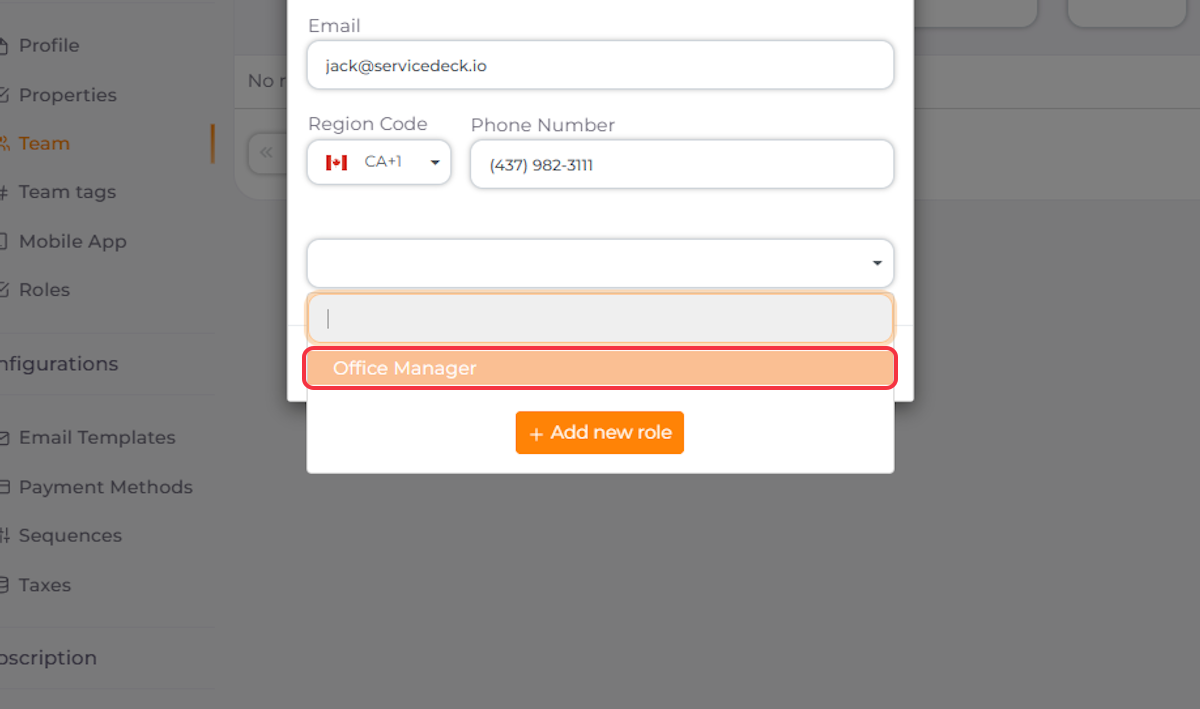
15. Select the Role you just created from the Dropdown
16. Click on Create
17. Send an Invite to your Team Member
18. Go back to Team. The Team Member now has a Custom Role